Google Chat now auto-posts Gemini meeting recaps after Meet calls, on by default from Oct 16
Google Workspace is adding automatic meeting recap cards to Google Chat. After a Meet call that used Gemini's "Take notes for me," the meeting's chat gets a summary, key decisions, action items and links to notes, recording and transcript. Rollout started October 16, 2026 for Rapid Release domains, and the feature is on by default for eligible business and enterprise plans.
Google is bringing automatic Gemini meeting recaps to Google Chat. When a Google Meet call uses "Take notes for me," the meeting's Chat conversation now gets a recap card with a summary, decisions, action items and links to the notes. Rollout began October 16, 2026 for Rapid Release domains, and the feature is on by default.
What a Google Chat meeting recap includes
The recap shows up as a card in the Chat conversation tied to the meeting. According to Google's announcement on the Workspace Updates blog, each card has four parts:
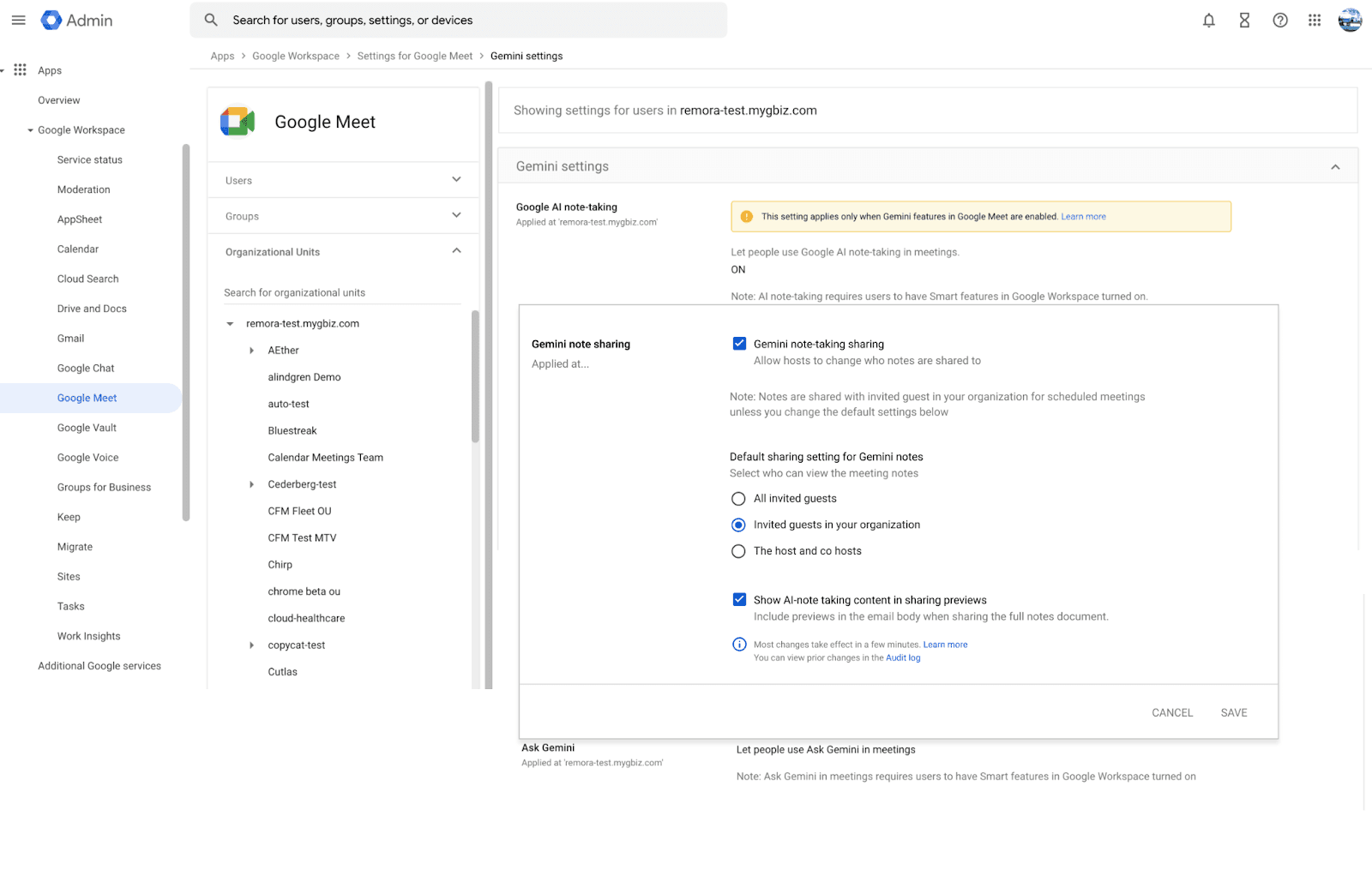 Image: Google · Source: workspaceupdates.googleblog.com
- Summary: a short overview of the main topics and takeaways from the call.
- Links to meeting files: one click opens the full Gemini notes document, the recording or the transcript.
- Key decisions: the conclusions and agreements the group reached.
- Action items: next steps, each with an assigned owner.
Google's goal is to keep follow-up work in the same place the team already chats. People who attended can check what they agreed to do. People who missed the call or arrived late can catch up without reading a whole transcript or searching Drive for the right file.
When recaps appear, and when they don't
Recaps aren't generated for every meeting. Two things have to be true:
- "Take notes for me" was turned on during the Google Meet call.
- The meeting has an associated Chat conversation.
There is one important exception. If the host sets the Meet option "Send notes to" to "Hosts and co-hosts only," no recap card goes to the group chat. That gives hosts a way to keep notes private for sensitive calls.
Google also designed the cards to be quiet. They arrive silently: the conversation isn't bolded and no unread badge appears in the conversation list. So a busy day of meetings shouldn't flood people with new notifications.
If a recap shouldn't stay in the thread, anyone in the meeting conversation can remove it from the card's three-dot menu by choosing Delete. That only removes the card from Chat. The original notes document stays in Google Drive.
Rollout dates and eligible Google Workspace plans
Google is rolling the feature out gradually, and it can take up to 15 days for it to show up for everyone in a domain:
- Rapid Release domains: rollout began on October 16, 2026.
- Scheduled Release domains: rollout starts on October 27, 2026.
The feature is available on these Google Workspace editions:
- Business Standard and Business Plus
- Enterprise Standard and Enterprise Plus
- Frontline Plus
Business Starter isn't on Google's list. If your organization uses a plan that isn't listed above, you shouldn't expect to see recap cards.
What admins and teams should do now
Admins: For organizations that already have Gemini for Google Workspace enabled, the feature is on by default. Google says it follows your existing admin policies for "Take notes for me" and Gemini. There is no separate switch for recaps in the announcement. To control it, you manage Gemini and note-taking through the policies you already use. Google links to its Help Center article on turning Gemini for Google Workspace on or off for your organization.
Because recaps now land automatically in group conversations, it's a good time to:
- Check whether "Take notes for me" is allowed for the right groups in your organization.
- Tell meeting hosts about the "Send notes to" option, so they know how to keep notes off the group chat for confidential meetings.
- Let staff know that any participant can delete a recap card, and that deleting it doesn't remove the notes file from Drive.
End users: You don't need to change any settings. Users don't get a setting for this feature. If your organization is on an eligible plan and note-taking is on, the recap appears in the meeting's Chat conversation once the call ends.
How to get recaps in your meetings
Google's instructions are simple: turn on "Take notes for me" in Google Meet during the call and make sure the meeting has a Chat conversation. After the meeting ends, the recap card is posted there. Google points to two Help Center articles for details: one on getting meeting recaps with Gemini in Google Chat, and one on using "Take notes for me" in Google Meet.
For hosts who want notes but no group recap, set "Send notes to" to hosts and co-hosts only before the notes are shared.
Frequently asked questions
Do I need to turn on meeting recaps in Google Chat?
No. For organizations with Gemini for Google Workspace enabled, it's on by default, and there's no end-user setting. Recaps show up once a Meet call with "Take notes for me" ends.
Which Google Workspace plans get meeting recaps?
Business Standard, Business Plus, Enterprise Standard, Enterprise Plus and Frontline Plus, according to Google's announcement.
How do I stop a recap from being posted to the group chat?
The meeting host can set "Send notes to" in Google Meet to hosts and co-hosts only, and then no recap card is posted to the group chat. Admins can also manage it through existing Gemini and "Take notes for me" policies.
Does deleting a recap card delete the meeting notes?
No. Deleting the card only removes the summary from the Chat thread. The original notes document stays in Google Drive.